
How to Create a Website with WordPress for Free: Your Ultimate SEO-Optimized Guide
Are you looking to establish a robust online presence without breaking the bank? Discovering how to create a website with WordPress for free is an empowering journey for individuals, small businesses, and aspiring bloggers alike. This comprehensive guide, crafted by an SEO expert, will demystify the process, providing actionable steps and insider tips to help you launch your very own professional-looking website without any upfront costs. Dive in to unlock the secrets of leveraging the world's most popular content management system for your digital aspirations.
Understanding the "Free" in WordPress: What's Truly Possible?
When we talk about creating a free WordPress website, it’s crucial to distinguish between the two primary flavors of WordPress and the components that constitute a website. WordPress itself, as a powerful software, is open-source and genuinely free to use. This is WordPress.org.
However, a functional website requires more than just the software. It needs a place to live (web hosting) and an address (domain name). Here’s where the "free" aspect often comes with caveats:
- WordPress.org: The free, open-source software you download and install on your own hosting. While the software is free, you typically pay for hosting and a custom domain.
- WordPress.com: A hosted service that uses the WordPress software. It offers a free plan that includes hosting and a subdomain (e.g., yoursite.wordpress.com). This is the most straightforward way to get a truly free website.
This guide will explore both avenues, focusing on the most accessible paths to a no-cost online platform, while also highlighting the natural limitations you might encounter. Understanding these nuances is key to setting realistic expectations for your website development project.
The Essential Components of Any Website (and Their Free Alternatives)
Before diving into the creation process, let's break down the fundamental elements that make up any website and how you can acquire them for free.
Domain Name: Your Website's Address
A domain name is your unique address on the internet (e.g., example.com). For a truly free website, you'll typically use a subdomain provided by your free hosting service. For instance:
- WordPress.com: Offers a free subdomain like yourbusinessname.wordpress.com.
- Free Hosting Providers: Many free web hosts provide a subdomain (e.g., yourname.000webhostapp.com).
While a free subdomain works for personal projects or testing, it lacks the professional appeal and SEO benefits of a custom top-level domain. However, it's a perfect starting point for your online presence.
Web Hosting: Where Your Website Lives
Web hosting is the service that stores your website's files and makes them accessible on the internet. Free hosting comes with inherent limitations but is viable for basic sites:
- WordPress.com Free Plan: Includes basic hosting, ideal for bloggers and small portfolios.
- Third-Party Free Hosting: Services like 000webhost, ByetHost, or InfinityFree offer free hosting with varying degrees of storage, bandwidth, and features. These often include a one-click WordPress installer.
Be aware that free hosting often entails ads, limited server resources, and less reliable uptime. It’s a good entry point but not a long-term solution for growing businesses or high-traffic sites.
WordPress Software: The Engine of Your Site
The core WordPress software (WordPress.org) is always free. It's an open-source content management system that powers over 40% of all websites globally. Its robust features, flexibility, and vast community support make it an unparalleled choice for any website.
Themes & Plugins: Design and Functionality
WordPress boasts an enormous ecosystem of themes (for design) and plugins (for functionality). Thousands of these are available for free:
- Free WordPress Themes: Found in the official WordPress.org theme directory or directly through WordPress.com. They offer various layouts and customization options to shape your site's aesthetic.
- Free WordPress Plugins: Extend your site's capabilities for SEO, security, contact forms, galleries, and more. The official WordPress.org plugin directory is your go-to resource.
Leveraging these free resources allows you to build a feature-rich site without any financial outlay.
Step-by-Step Guide: How to Create a Website with WordPress for Free (Truly Free)
Let's walk through the most common and effective methods to get your free WordPress website up and running.
Option 1: Utilizing Free WordPress.com Hosting (Recommended for Absolute Beginners)
This is the simplest way to create a free website with WordPress, as it bundles hosting and the software together.
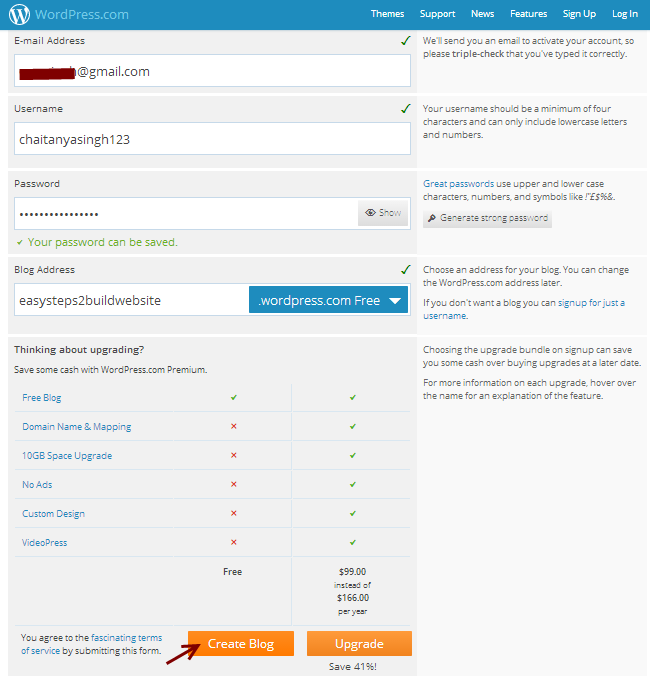
- Step 1: Head to WordPress.com and Sign Up.
Navigate to WordPress.com. Click on "Get Started" or "Start your website." You'll be prompted to create an account using your email, Google, or Apple ID.
- Step 2: Choose Your Site Type and Name.
WordPress.com will ask you about the purpose of your site (blog, business, portfolio, etc.) and to choose a site name. This name will initially form part of your free subdomain (e.g., "myawesomesite").
- Step 3: Select a Free Plan and Subdomain.
When prompted to pick a plan, scroll down and select the "Start with a free site" option. WordPress.com will suggest a free subdomain based on your site name (e.g., myawesomesite.wordpress.com). Confirm this choice.
- Step 4: Select a Free Theme.
You'll be presented with a selection of free WordPress themes. Choose one that aligns with your aesthetic and purpose. Don't worry, you can change this later.
- Step 5: Start Creating Pages and Posts.
Once your site is set up, you'll be taken to your WordPress.com dashboard. Here, you can immediately start adding content. Go to "Pages" to create static pages (e.g., About Us, Contact) or "Posts" for blog entries. Use the intuitive block editor (Gutenberg) to add text, images, videos, and more.
- Step 6: Basic Customization and Launch.
Explore the "Appearance" > "Customize" section to fine-tune your site's design, colors, fonts, and header image. Add a site title and tagline. When you're ready, you can make your site public by clicking the "Launch Site" button from your dashboard. Congratulations, you've just created a free website!
Option 2: Leveraging Third-Party Free Hosting Providers (for More Control, but with Limitations)
This path offers more control over the WordPress software but relies on external free hosting services, which vary greatly in quality and reliability. Popular examples include 000webhost, ByetHost, and InfinityFree.
- Step 1: Sign Up for a Free Hosting Account.
Visit a reputable free hosting provider's website (e.g., 000webhost). Register for a free account. Be prepared for potential ads on your site or in the control panel.
- Step 2: Install WordPress.
Most free hosts offer a one-click WordPress installer (often via Softaculous or similar auto-installers) within their control panel (cPanel or a custom panel). Locate this installer and follow the prompts to install WordPress on your free hosting space. You'll set up your admin username and password during this process.
- Step 3: Connect Your Free Subdomain or Temporary URL.
Your free host will assign you a temporary URL or a free subdomain. Use this to access your newly installed WordPress site. This is your primary URL for the time being.
- Step 4: Explore Free Themes and Plugins.
Log into your WordPress dashboard (usually at yourdomain.com/wp-admin). From here, you have full access to the WordPress.org theme and plugin directories. Go to "Appearance" > "Themes" > "Add New" or "Plugins" > "Add New" to browse and install free options. This gives you greater flexibility than WordPress.com's free tier.
While this option provides more technical control, it's crucial to understand the trade-offs: limited resources, potential downtime, and sometimes intrusive advertising. It's an excellent environment for learning website development and testing WordPress functionalities.
Navigating the WordPress Dashboard: Your Control Center
Once you're logged into your WordPress dashboard (also known as the admin area), you'll find a powerful interface to manage every aspect of your site. Here are the key sections you'll use frequently:
- Dashboard: An overview of your site's activity, recent drafts, and quick links.
- Posts: Manage your blog posts. Create new ones, edit existing ones, and organize them with categories and tags. Essential for blogging and dynamic content.
- Pages: Create static content like an "About Us" page, "Contact" page, or "Services" page.
- Comments: Moderate comments left by visitors on your posts.
- Appearance:
- Themes: Change your site's design by installing new themes.
- Customize: Live preview changes to your theme's colors, fonts, header, and more.
- Widgets: Add content blocks (like recent posts, search bar) to your sidebar or footer.
- Menus: Create navigation menus for your site.
- Plugins: Extend your site's functionality. Install new plugins, activate/deactivate them, and configure their settings.
- Users: Manage user accounts if you have multiple people working on your site.
- Settings: Configure core WordPress settings, including your site title, tagline, permalinks (URL structure), and reading options.
Spend time exploring each section. The more familiar you are with the dashboard, the more efficiently you can manage and grow your free website.
Essential Free WordPress Themes & Plugins for Beginners
To truly enhance your free WordPress site, you'll want to leverage the vast array of free themes and plugins available. These tools can dramatically improve your site's appearance, functionality, and SEO.
Choosing a Free Theme: Design Your Digital Space
A theme dictates your website's visual design. When choosing a free theme from the WordPress.org directory, look for:
- Responsiveness: Ensures your site looks good on all devices (desktops, tablets, phones). Critical for user experience and SEO.
- Customization Options: Even free themes offer options to change colors, fonts, layouts, and header images.
- Good Reviews & Active Development: Indicates a well-supported theme that's regularly updated.
- Lightweight: A fast-loading theme contributes to better performance and SEO.
Popular Free Theme Examples:
- Astra: Extremely popular, lightweight, and highly customizable. Great for almost any type of website.
- GeneratePress: Known for its speed and stability, offering excellent control for developers and users.
- OceanWP: A versatile and multi-purpose theme with many demo sites for various niches.
These themes have free versions that provide ample features for a stunning online presence.
Must-Have Free Plugins: Power Up Your Site
Plugins add specific functionalities without requiring coding knowledge. Here are some indispensable free plugins:
- SEO Plugin (Yoast SEO or Rank Math): Absolutely critical for search engine optimization. These plugins help you optimize your content, create XML sitemaps, and manage meta descriptions and titles. Learn more about SEO best practices.
- Security Plugin (Wordfence Security or iThemes Security): Protect your site from malicious attacks, spam, and unauthorized access. Essential for maintaining a secure online platform.
- Performance/Caching Plugin (LiteSpeed Cache or WP Super Cache): Improve your site's loading speed by caching pages. Faster sites offer better user experience and higher search rankings.
- Page Builder (Elementor Free or Beaver Builder Lite): Drag-and-drop interfaces to design beautiful pages without code. Perfect for creating custom layouts.
- Contact Form Plugin (Contact Form 7 or WPForms Lite): Easily create contact forms, survey forms, or other interactive forms for your visitors.
Install these core plugins to lay a strong foundation for your free WordPress website.
Optimizing Your Free WordPress Site for Success (Even Without a Budget)
Creating your free site is just the beginning. To truly succeed, you need to optimize it for visibility and user engagement. This is where digital marketing and SEO best practices come into play.
Content Strategy & SEO Basics
Even with a free site, you can implement powerful SEO strategies:
- Keyword Research: Use free tools like Google Keyword Planner (with a Google Ads account), Ubersuggest (limited free searches), or AnswerThePublic to find relevant keywords your target audience is searching for.
- High-Quality Content: Focus on creating valuable, informative, and engaging content that genuinely helps your audience. This is the cornerstone of any effective content management system.
- On-Page SEO Fundamentals:
- Titles & Meta Descriptions: Craft compelling, keyword-rich titles and meta descriptions for every page and post. Your SEO plugin will assist with this.
- Headings (H1, H2, H3): Use proper heading hierarchy to structure your content, making it scannable and digestible for both users and search engines.
- Image Optimization: Compress images to reduce file size and use descriptive alt text for accessibility and SEO.
- Internal Linking: Link relevant pages within your own site. This helps users navigate and distributes "link juice" throughout your site, improving its overall SEO. For example, you might link to how to get a custom domain name.
Performance & User Experience
Speed and usability are critical for retaining visitors and improving search rankings:
- Image Optimization: As mentioned, optimize images before uploading them. Use tools like TinyPNG or Smush (WordPress plugin).
- Caching: Ensure your caching plugin is configured correctly to serve cached versions of your pages, significantly speeding up load times.
- Mobile Responsiveness: Always test your site on various mobile devices. A mobile-friendly design is no longer optional; it's a necessity for modern web development.
Promoting Your Free Website
Even without a budget, you can promote your site effectively:
- Social Media: Share your content on relevant social media platforms to drive traffic and build a community.
- Online Directories: List your website in free online directories relevant to your niche.
- Email Sign-ups: If your free plan allows, set up a simple email opt-in form to build an audience.
Consistent effort in these areas will help your free WordPress website gain traction and visibility.
When to Consider Upgrading: The Limitations of "Free"
While creating a website with WordPress for free is an excellent starting point, it's important to be aware of the limitations. As your site grows or your needs evolve, you will likely encounter reasons to upgrade to a paid plan or move to self-hosted WordPress.org with premium hosting and a custom domain.
- Limited Storage and Bandwidth: Free hosting plans typically offer minimal storage and bandwidth, which can quickly become insufficient for a growing site with more content and traffic.
- Subdomain Branding: A free subdomain (e.g., yourname.wordpress.com) lacks the professional credibility and branding of a custom domain (e.g., yourname.com). It can also negatively impact your search engine optimization efforts as search engines often give less authority to subdomains.
- Lack of Professional Email: Free plans rarely include custom email addresses (e.g., info@yourname.com), which are crucial for professional communication.
- Reduced Control and Flexibility: Free WordPress.com plans restrict your ability to install certain plugins (especially those not in their approved list) or heavily customize themes. Third-party free hosts might impose their own limitations.
- Advertisements: Many free hosting providers, including WordPress.com's free plan, may display their own ads on your website. This can be distracting for visitors and unprofessional.
- Security Concerns: While WordPress itself is secure, free hosting providers may not offer the same level of security infrastructure, regular backups, or dedicated support as paid hosts.
- Scalability Issues: As your traffic grows, free hosting will likely buckle under the load, leading to slow loading times or even downtime.
- Monetization Restrictions: Free WordPress.com plans often have strict rules about monetization (e.g., no third-party ads).
Recognizing these limitations will help you decide when it's time to invest in a paid hosting plan and a custom domain, unlocking the full potential of WordPress for your digital marketing strategy and long-term online presence.
Frequently Asked Questions
Can I really create a professional website for free?
Yes, you can create a functional and aesthetically pleasing website for free using WordPress.com's free plan or by combining free WordPress software with a free third-party hosting provider. However, it's important to manage expectations. While these options allow you to establish an online presence and showcase your content, they come with limitations such as a subdomain (e.g., yoursite.wordpress.com), limited storage/bandwidth, potential ads, and fewer customization options compared

0 Komentar