
Unlocking Creativity: The Best Free Graphic Design Software for Beginners
Are you eager to dive into the exciting world of visual communication but feel held back by the steep price tags of professional design suites? Discovering the best free graphic design software for beginners is your gateway to unleashing creativity without breaking the bank. This comprehensive guide will navigate you through powerful, no-cost alternatives perfect for anyone starting their digital art journey, offering robust features for everything from simple image editing to intricate vector graphics. Get ready to transform your ideas into stunning visual content and build a strong foundation in design principles, all completely free.
Why Choose Free Graphic Design Software When You're Starting Out?
For aspiring designers, the initial investment in premium software can be a significant barrier. Adobe Creative Cloud, while industry-standard, comes with a subscription cost that might be prohibitive for those just exploring their interest or working on personal creative projects. Free graphic design software provides an invaluable opportunity to learn, experiment, and develop essential skills without financial commitment. These tools often boast a surprisingly rich feature set, enabling users to tackle a wide range of tasks, from basic photo manipulation to complex digital illustrations.
Embracing these accessible platforms allows you to focus purely on learning design fundamentals, understanding user-friendly interfaces, and developing your unique style. Many free options are also supported by active online communities, offering a wealth of tutorials, tips, and peer support – crucial for any beginner. It’s about empowering you to create compelling visual assets from day one.
Key Considerations for Beginners Choosing Free Software
- Ease of Use: A steep learning curve can be demotivating. Look for software with intuitive interfaces and straightforward tools that allow you to grasp core concepts quickly.
- Feature Set: While free, the software should offer enough functionality to perform common tasks like resizing, cropping, layering, and adding text. Consider if you need raster (pixel-based) or vector (scalable) capabilities.
- Community Support: An active community means more tutorials, forums, and resources to help you troubleshoot and learn.
- System Requirements: Ensure the software runs smoothly on your computer without demanding excessive resources.
- Availability of Tutorials: Good educational resources, whether official or community-driven, are vital for rapid learning.
- Export Options: Check if the software supports exporting in common file formats (e.g., JPG, PNG, SVG, PDF) essential for sharing your creative projects.
Top Picks: Best Free Graphic Design Software for Beginners
We've meticulously curated a list of the most effective and user-friendly free graphic design tools available today. Each offers a unique set of advantages, catering to different design needs and learning styles. Explore these options to find your perfect match and kickstart your journey into visual content creation.
1. GIMP (GNU Image Manipulation Program)
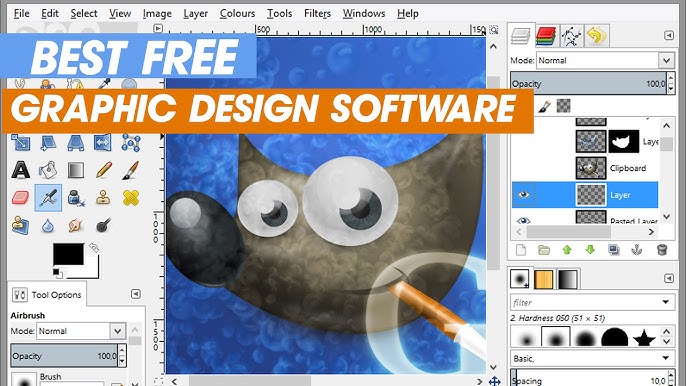
Often hailed as the "free Photoshop alternative," GIMP is a powerful, open-source raster graphics editor. It's incredibly versatile, suitable for everything from simple image editing and photo retouching to more complex tasks like creating web graphics, digital painting, and even basic animation. While its interface might seem daunting at first glance due to the sheer number of features, its capabilities are truly professional-grade.
- Key Features:
- Comprehensive suite of painting tools (brushes, pencils, airbrushes, clone, etc.)
- Advanced photo retouching and restoration capabilities
- Layer management, channels, and paths
- Support for numerous file formats
- Highly customizable interface and extensibility via plugins
- Excellent for pixel-based editing and graphic design fundamentals.
- Pros:
- Extremely powerful and feature-rich for a free program.
- Active development and a large, supportive community.
- Cross-platform compatibility (Windows, macOS, Linux).
- Ideal for learning professional image manipulation techniques.
- Cons:
- Steeper learning curve compared to simpler tools.
- Interface can feel less intuitive than commercial alternatives.
- Lacks some advanced features found in premium software (e.g., CMYK support for print design is not native, though plugins exist).
- Best for: Beginners serious about learning professional-level image editing and who are willing to invest time in mastering a complex, yet incredibly rewarding, tool. It’s perfect for those aiming for careers in digital art or visual communication.
- Actionable Tip: Start by watching beginner tutorials on YouTube. Focus on basic photo adjustments, cropping, and understanding layers. GIMP's power lies in its layers, which are fundamental to any serious image editing.
2. Krita
For aspiring digital artists and illustrators, Krita stands out as an exceptional free and open-source painting program. While it can handle image editing, its primary strength lies in its extensive tools for sketching, painting, and creating comics. Its interface is designed with artists in mind, offering a highly customizable workspace and a wealth of brushes and effects.
- Key Features:
- Over 100 professional brushes with customizable settings
- Brush stabilizers for smooth lines
- Layer management, masking, and selection tools
- Support for various color models (RGB, CMYK, etc.) and HDR painting
- Wrap-around mode for creating seamless textures and patterns
- Animation capabilities (frame-by-frame)
- Excellent for digital art tools and illustration software.
- Pros:
- Outstanding brush engine and painting experience.
- Designed specifically for artists, with many artist-centric features.
- Regular updates and a dedicated community.
- Available on Windows, macOS, Linux.
- Cons:
- Less focused on general photo manipulation than GIMP.
- Can be resource-intensive for complex projects.
- Interface might still require some learning for complete novices.
- Best for: Beginners who want to explore digital painting, concept art, comics, and traditional illustration styles. If your primary goal is to create original artwork rather than edit photos, Krita is an unparalleled choice.
- Actionable Tip: Experiment with different brush presets to understand their textures and effects. Krita's brush engine is incredibly powerful; mastering it will significantly improve your digital art. Consider investing in a simple graphic tablet for the best experience.
3. Inkscape
When it comes to creating scalable graphics, logos, and illustrations, Inkscape is the undisputed champion of free vector graphics software. Unlike raster images (which are pixel-based and can become blurry when scaled), vector graphics are mathematical equations that define lines, curves, and shapes, allowing them to be scaled infinitely without loss of quality. This makes Inkscape ideal for branding elements, web design assets, and print materials.
- Key Features:
- Robust set of drawing tools (pens, pencils, calligraphy)
- Path manipulation and boolean operations
- Text tools with font and styling options
- Object creation and manipulation (shapes, clones, patterns)
- Support for SVG (Scalable Vector Graphics) as its native format
- Excellent for creating logos, icons, and illustrations that need to be resized without pixelation.
- Pros:
- Professional-grade vector editing capabilities.
- Open-source with a strong community and regular updates.
- Cross-platform compatibility (Windows, macOS, Linux).
- Perfect for learning vector design principles.
- Cons:
- Interface can feel less polished than commercial alternatives.
- Performance can sometimes lag with very complex files.
- Not suitable for photo editing or pixel-based art.
- Best for: Beginners interested in logo design, icon creation, web graphics, print layouts, and illustrations that require crisp, scalable lines. If you envision creating branding elements or clean, geometric designs, Inkscape is your go-to.
- Actionable Tip: Start by learning the Pen tool (Bézier curves). While challenging initially, mastering this tool is fundamental to creating precise vector shapes and paths in Inkscape. Look for tutorials specifically on logo design or icon creation using paths.
4. Canva
For those who need to create stunning visual content quickly and effortlessly, Canva is an online design platform that has revolutionized graphic design for non-designers. While it offers a premium subscription, its free tier provides an incredible wealth of templates, stock photos, fonts, and design elements, making it ideal for social media graphics, presentations, posters, and simple marketing materials. It’s perfect for anyone who needs to produce professional-looking designs without delving deep into complex software.
- Key Features:
- Drag-and-drop interface for extreme ease of use.
- Thousands of pre-designed templates for various purposes (social media, presentations, flyers, resumes).
- Access to a vast library of free stock photos, icons, shapes, and fonts.
- Collaboration features for team projects.
- Cloud-based, accessible from any device with an internet connection.
- Excellent for creating quick visual content for digital use.
- Pros:
- Incredibly user-friendly interface, minimal learning curve.
- Rapid design creation, perfect for busy individuals or small businesses.
- Extensive template library kickstarts your creative projects.
- No software installation required.
- Cons:
- Limited advanced editing capabilities compared to desktop software.
- Free version has limitations on premium assets and features.
- Can be restrictive for truly unique or complex designs.
- Requires an internet connection to use.
- Best for: Beginners who need to create visually appealing social media posts, marketing materials, presentations, or invitations without extensive design knowledge. It's perfect for content creators, small business owners, or students.
- Actionable Tip: Leverage Canva's vast template library. Don't just use them as-is; customize them with your own colors, fonts, and images to make them unique. This is a great way to learn about good layout and design principles.
5. Photopea
Photopea is a remarkable free, web-based image editor that runs entirely in your browser. Its interface is strikingly similar to Adobe Photoshop, making it an excellent choice for those familiar with Photoshop's layout or aspiring to learn it without the cost. It supports a wide range of file formats, including PSD (Photoshop), XCF (GIMP), Sketch, and more, allowing for seamless integration into various workflows. It’s essentially a powerful online design platform that brings desktop-level functionality to your web browser.
- Key Features:
- Layer-based editing with masks, smart objects, and adjustment layers.
- Extensive selection tools, filters, and blending modes.
- Support for raster and some vector editing capabilities.
- High compatibility with professional file formats (PSD, XCF, Sketch, PDF, RAW).
- Can be used offline after initial loading.
- Ideal for photo manipulation and image editing tasks similar to Photoshop.
- Pros:
- No installation required, runs in any modern web browser.
- Interface is highly familiar to Photoshop users, easing the transition.
- Supports a vast array of file types, making collaboration easier.
- Surprisingly powerful for a free, browser-based tool.
- Excellent for learning professional image editing workflows.
- Cons:
- Performance can depend on your internet connection and browser.
- Can be ad-supported in the free version (though unobtrusive).
- Requires a decent amount of RAM for complex projects.
- Not ideal for purely vector-based work or complex illustrations.
- Best for: Beginners who want to learn Photoshop-like workflows without paying for software, or those who need a robust online tool for quick edits, mockups, and working with various professional file formats.
- Actionable Tip: Practice with Photopea by opening a PSD file (even a free template online) and trying to replicate some of its effects or adjustments. This will quickly familiarize you with layers, masks, and adjustment layers – core concepts for any serious image editing.
Actionable Tips for Maximizing Your Free Graphic Design Software Experience
Choosing the right software is just the first step. To truly excel, consistent practice and smart learning strategies are key. Here’s how you can make the most of your chosen free graphic design tools:
- Embrace Online Tutorials: YouTube, software-specific forums, and official documentation are goldmines for learning. Search for "GIMP for beginners," "Krita digital painting," or "Inkscape logo design tutorial" to find structured lessons.
- Start with Simple Projects: Don't try to design a complex magazine layout on day one. Begin with basic tasks like cropping and resizing photos, creating a simple social media graphic, or designing a basic icon. Gradually increase complexity.
- Understand Design Principles: Software is just a tool. Learning about color theory, typography, composition, hierarchy, and balance will elevate your designs far beyond just technical proficiency. Many free online courses and articles cover these graphic design fundamentals.
- Join Communities: Most open-source software like GIMP, Krita, and Inkscape have active user forums and subreddits. These communities are invaluable for asking questions, sharing your work, and getting feedback.
- Practice Regularly: Consistency is key. Even 15-30 minutes of practice daily or a few times a week can significantly improve your skills over time. Challenge yourself with small creative projects.
- Don't Be Afraid to Experiment: Click buttons, try out filters, and combine tools in unexpected ways. Discovery is a huge part of the learning process. You can always undo mistakes!
- Organize Your Workspace: As you gain experience, customize your software's interface to suit your workflow. Most free tools allow you to arrange panels and toolbars for greater efficiency.
- Save Frequently and Back Up: Especially with desktop software, save your work often. For online tools like Canva or Photopea, ensure your browser isn't cleared of data, or download copies of your projects regularly.
Frequently Asked Questions About Free Graphic Design Software
What is the absolute best free graphic design software for someone who has never designed before?
For someone with absolutely no prior design experience, Canva is often the easiest entry point. Its drag-and-drop interface and extensive template library allow you to create professional-looking visual content almost instantly. While it may not teach you deep technical skills, it's excellent for understanding layout, visual hierarchy, and quickly producing appealing designs. If you're looking to learn more traditional image editing skills, Photopea is an excellent browser-based option that mimics professional software like Photoshop, offering a more robust learning curve but immense power.
Can I create professional logos with free software?
Absolutely! Inkscape is an incredibly powerful open-source tool specifically designed for vector graphics, which is the industry standard for logo design. Logos created in Inkscape are scalable to any size without losing quality, making them perfect for both digital and print applications. While it has a learning curve, mastering Inkscape will enable you to create high-quality, professional branding elements for personal or client projects.
Is free graphic design software good enough for a career in design?
While industry professionals often use paid software like Adobe Creative Suite, many designers start and even build successful careers using free and open-source tools. GIMP and Inkscape, for instance, are incredibly robust and capable of producing professional-grade work. The key is not necessarily the software itself, but your understanding of design principles, your creativity, and your ability to execute your vision. Using free software to build a strong portfolio can certainly pave the way for a design career, demonstrating your skill and resourcefulness.
What's the difference between raster and vector graphic software? Which one do I need?
The primary difference lies in how images are created and stored. Raster graphics (like those edited in GIMP, Krita, or Photopea) are composed of pixels. They are excellent for photographs and detailed digital paintings but can become pixelated or blurry when scaled up significantly. Vector graphics (like those created in Inkscape) are based on mathematical equations defining lines, curves, and shapes. They can be scaled to any size without loss of quality, making them ideal for logos, illustrations, and typography. You need raster software for photo editing and digital painting, and vector software for logos, icons, and illustrations that require crisp, scalable lines. Many designers use both types of software depending on the creative projects they are working on.

0 Komentar