
How to Set Up a Home Network Properly: A Comprehensive SEO Guide
Are you looking to establish a robust and reliable internet connection for your entire household? Learning how to set up a home network properly is no longer just for tech enthusiasts; it's a fundamental skill for modern living. This comprehensive guide will walk you through every critical step, from selecting the right hardware to optimizing your Wi-Fi for peak performance and fortifying your digital defenses. By the end, you'll have a secure, efficient home internet setup that supports all your devices, whether for work, streaming, or online gaming, ensuring seamless connectivity and peace of mind.
Understanding the Core Components of Your Home Network
Before diving into the setup process, it's crucial to grasp the fundamental building blocks of any successful home network. Understanding these components will empower you to make informed decisions and troubleshoot issues more effectively.
Key Devices That Form Your Network's Backbone
- Modem: This is the gateway to the internet. Your Internet Service Provider (ISP) typically provides it, and its primary function is to translate the digital signals from your ISP into a format your home network can understand, and vice-versa. Think of it as the translator between your home and the vast internet. Common types include cable modems, DSL modems, and fiber optic modems.
- Router: The router is the central traffic controller of your home network. It takes the internet connection from the modem and distributes it to all your connected devices, whether wired via Ethernet cables or wirelessly via Wi-Fi. A good router manages IP addresses, ensures data packets go to the correct device, and often includes built-in security features like firewalls. Many ISPs now offer modem-router combos, which integrate both functionalities into a single device, simplifying the setup but sometimes limiting flexibility.
- Switch: While many routers have a few Ethernet ports built-in, a network switch is used when you need to connect more wired devices than your router allows. A switch creates additional wired ports, allowing multiple devices like desktop PCs, gaming consoles, and smart TVs to have stable, high-speed wired connections simultaneously.
- Access Point (AP): An access point extends your wireless network's coverage. If your Wi-Fi signal doesn't reach certain areas of your home, an AP can be strategically placed to broadcast the Wi-Fi signal further. Unlike a router, an AP solely handles wireless connectivity and does not route traffic or assign IP addresses. Many modern mesh Wi-Fi systems essentially use multiple access points to create a seamless, expansive wireless network.
Wired vs. Wireless: Choosing Your Connectivity Strategy
Both wired and wireless connections have their advantages. A well-designed residential network configuration often utilizes a hybrid approach.
- Wired Connections (Ethernet):
- Pros: Offer superior network speed, lower latency (crucial for online gaming and video conferencing), and greater reliability. They are less susceptible to interference from other wireless devices.
- Cons: Require physical cables, which can be less convenient and limit device mobility.
- Best for: Desktop PCs, gaming consoles, smart TVs, network-attached storage (NAS) devices, and any stationary device where maximum performance and stability are paramount.
- Wireless Connections (Wi-Fi):
- Pros: Provide unparalleled convenience and mobility. Devices can connect from anywhere within range without physical cables.
- Cons: Can be slower and less stable than wired connections due to interference, distance, and obstacles. Wi-Fi security is a critical consideration.
- Best for: Laptops, smartphones, tablets, smart home devices, and any device requiring mobility.
Essential Pre-Setup Checklist for a Smooth Installation
Preparation is key to a successful home network setup. A little planning goes a long way in avoiding frustration and ensuring optimal performance.
Assessing Your Internet Service Provider (ISP) and Speed Requirements
Your network's performance starts with your ISP. Understand your current internet plan and consider your household's needs.
- Current Plan Review: Check the download and upload speeds your ISP promises. Are you getting what you pay for? Tools like Speedtest.net can help you verify.
- Household Usage: How many people live in your home? How many devices will be connected simultaneously? Do you frequently stream 4K video, play online games, or work from home with large file transfers?
- For basic browsing and email, 25-50 Mbps might suffice.
- For streaming HD video and light gaming, 100-200 Mbps is a good starting point.
- For 4K streaming, competitive online gaming, and multiple simultaneous users, 300+ Mbps is recommended.
- Gigabit internet (1000 Mbps) is ideal for heavy users, large families, or future-proofing.
- Modem Compatibility: Ensure your modem is compatible with your ISP's service and supports the speeds you intend to use. Older modems might bottleneck faster internet plans.
Choosing the Right Hardware: Routers, Modems, and Network Adapters
Investing in quality hardware is paramount for a reliable and high-performing home network.
- Router Selection:
- Wi-Fi Standards: Look for Wi-Fi 6 (802.11ax) or Wi-Fi 6E for future-proofing and better performance, especially in congested environments. Wi-Fi 5 (802.11ac) is still common and capable.
- Bands: Dual-band (2.4 GHz and 5 GHz) routers are standard. Tri-band routers offer an additional 5 GHz band for even more dedicated bandwidth for high-demand devices.
- Antennas: More antennas generally mean better range and signal strength.
- Processor & RAM: A more powerful processor and ample RAM in the router ensure it can handle multiple simultaneous connections and complex tasks without slowing down.
- Ethernet Ports: Ensure enough Gigabit Ethernet ports for your wired devices.
- Features: Consider features like Quality of Service (QoS), parental controls, USB ports for network storage, and VPN support.
- Modem Purchase (if not ISP provided): If you decide to buy your own modem, ensure it's on your ISP's approved list and supports the maximum speed of your internet plan. This can save you monthly rental fees.
- Network Adapters: For older computers without modern Wi-Fi capabilities, a USB Wi-Fi adapter can provide an upgrade. Ensure it supports the same Wi-Fi standard as your new router for optimal performance.
Network Cabling and Placement Considerations
The physical layout of your network significantly impacts its performance.
- Ethernet Cables: Use Cat5e or, preferably, Cat6 Ethernet cables for all wired connections. Cat6 offers better performance and future-proofing, especially for Gigabit speeds.
- Router Placement: This is critical for optimizing Wi-Fi.
- Central Location: Place your router in a central location in your home, ideally high up on a shelf, to maximize signal distribution.
- Avoid Obstacles: Keep it away from thick walls (especially concrete or brick), large metal objects, and appliances that emit electromagnetic interference (microwaves, cordless phones, baby monitors).
- Line of Sight: The fewer obstructions between your router and devices, the better the signal.
Step-by-Step Guide to Setting Up Your Home Network
Now, let's get hands-on with the setup process. Follow these steps carefully for a seamless installation.
Step 1: Connecting Your Modem and Router
- Connect the Modem: Plug your ISP's coaxial cable (for cable internet), phone line (for DSL), or fiber optic cable into the appropriate port on your modem.
- Power On Modem: Plug the modem's power adapter into an electrical outlet and wait for it to fully boot up. This usually takes a few minutes, and you'll see indicator lights stabilize (e.g., internet light turning solid).
- Connect Router to Modem: Use an Ethernet cable to connect the modem's "LAN" or "Ethernet" port to the router's "WAN" or "Internet" port (often colored differently, like blue).
- Power On Router: Plug the router's power adapter into an electrical outlet and wait for it to boot up.
- Connect a Device (Optional but Recommended): For initial setup, it's often easiest to connect a computer directly to one of the router's LAN ports with an Ethernet cable. This ensures you have a stable connection to access the router settings.
Step 2: Initial Configuration: Accessing Router Settings
This is where you personalize your network.
- Access Router's Web Interface: Open a web browser on your connected computer. In the address bar, type your router's default IP address (e.g.,
192.168.1.1,192.168.0.1, or192.168.1.254). This information is usually found on a sticker on the bottom or back of your router, or in its manual. - Log In: Enter the default username and password. Again, this is typically on a sticker on the router. Common defaults include "admin/admin" or "admin/password". It is absolutely critical to change these default credentials immediately for security.
- Run Setup Wizard: Most modern routers have a quick setup wizard that guides you through the basic configuration. Follow the prompts.
- Change Default Login Credentials: Navigate to the "Administration," "System," or "Security" section and change the router's login username and password to something strong and unique. This is a vital step in securing your internet connection.
Step 3: Securing Your Network: Wi-Fi Passwords and Encryption
Network security is paramount to protect your personal data and prevent unauthorized access.
- Set Up Wi-Fi Name (SSID): In the wireless settings, change the default Wi-Fi network name (SSID) to something unique but not easily identifiable as yours (e.g., avoid using your name or address).
- Choose Strong Encryption (WPA3 or WPA2-PSK AES): Select the strongest available security protocol. WPA3 is the latest and most secure. If not available, WPA2-PSK (AES) is the next best choice. Avoid WEP or WPA/WPA-TKIP, as they are outdated and vulnerable.
- Create a Strong Wi-Fi Password: Your Wi-Fi password (also called passphrase or network key) should be long (at least 12-16 characters), complex, and unique. Use a mix of uppercase and lowercase letters, numbers, and symbols.
- Disable WPS (Wi-Fi Protected Setup): While convenient, WPS can be a security vulnerability. It's generally recommended to disable it in your router settings.
Step 4: Optimizing Wi-Fi Performance: Channel Selection and Band Steering
Fine-tuning your wireless settings can significantly improve your network's speed and reliability.
- Channel Selection: Wi-Fi operates on specific channels. In congested areas (like apartment buildings), neighboring networks can interfere with yours.
- 2.4 GHz Band: Only channels 1, 6, and 11 are non-overlapping. Use a Wi-Fi analyzer app (available for smartphones) to identify the least congested channel in your area and manually set your router to it.
- 5 GHz Band: Has many more non-overlapping channels, making interference less of an issue, but it has shorter range and less penetration through walls.
- Band Steering (or Smart Connect): Many modern dual-band routers offer this feature. It automatically directs devices to the optimal Wi-Fi band (2.4 GHz for range, 5 GHz for speed) based on their capabilities and signal strength. Enable this if available.
- Firmware Updates: Regularly check for and install firmware updates for your router. These updates often include performance improvements, bug fixes, and critical security patches.
Step 5: Setting Up Guest Networks
A guest network provides internet access to visitors without giving them access to your main network and its connected devices (like NAS drives or smart home devices). This is a crucial security measure.
- Enable Guest Network: Most routers have a dedicated setting for this.
- Separate SSID and Password: Give it a unique name and a different, easy-to-share password.
- Isolation: Ensure the guest network is isolated from your main network. This prevents guests from accessing your private files or devices.
Advanced Home Network Management and Optimization
Once your basic network is up and running, you can explore advanced features to enhance its capabilities and performance.
Implementing Quality of Service (QoS)
QoS allows you to prioritize certain types of network traffic over others. This is incredibly useful for ensuring smooth performance for critical applications.
- Prioritize Bandwidth: For example, you can set your router to prioritize online gaming traffic or video streaming (e.g., Netflix, YouTube) over general web browsing or large downloads. This prevents lag and buffering when multiple users are active.
- Device Prioritization: Some QoS implementations allow you to prioritize specific devices (e.g., your work laptop) over others.
Understanding Port Forwarding and UPnP (with Security Caveats)
These features allow external internet traffic to reach specific devices on your internal network.
- Port Forwarding: Manually directs incoming traffic on a specific port to a specific internal IP address. Useful for hosting game servers, accessing security cameras remotely, or certain P2P applications. Requires a static IP address for the internal device.
- UPnP (Universal Plug and Play): Automatically opens and closes ports as needed by applications. While convenient, UPnP can pose a security risk if not managed carefully, as it can allow malicious software to open ports without your explicit permission. It's often recommended to disable UPnP and use manual port forwarding if absolutely necessary.
Network Attached Storage (NAS) Integration
A NAS device is essentially a dedicated computer for storing and sharing files over your network. It's perfect for centralizing backups, streaming media, and creating a private cloud.
- Centralized Storage: Store all your photos, videos, and documents in one place, accessible from any device on your network.
- Media Server: Many NAS devices can act as a media server (e.g., Plex, Emby), allowing you to stream your content to smart TVs, phones, and tablets.
- Automated Backups: Configure your computers to automatically back up to the NAS, protecting your valuable data.
Utilizing Mesh Wi-Fi Systems for Large Homes
For larger homes or those with challenging layouts (e.g., multiple floors, thick walls), a single router might not provide adequate coverage. Mesh Wi-Fi systems are an excellent solution.
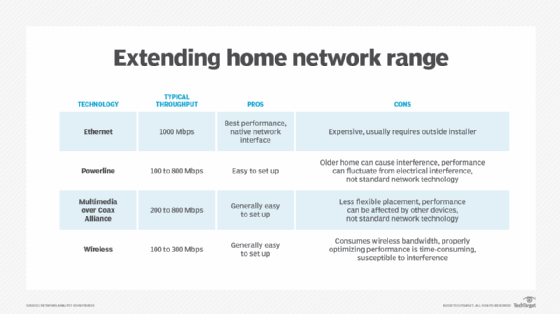
- Seamless Coverage: A mesh system consists of multiple units (a main router and several satellites or nodes) that work together to create a single, unified Wi-Fi network. Devices seamlessly switch between nodes as you move around, ensuring consistent signal strength.
- Easy Expansion: You can easily add more nodes to extend coverage further.
- Improved Performance: Often use dedicated backhaul channels to communicate between nodes, reducing congestion and improving overall network performance.
Troubleshooting Common Home Network Issues
Even with a proper setup, you might encounter issues. Here's how to address some common problems.
Slow Speeds and Dropped Connections
- Reboot Everything: A classic IT solution, but effective. Power cycle your modem, then your router, and finally your devices. Wait a few minutes between each step.
- Check for Interference: Move your router away from other electronics. Identify and switch to a less congested Wi-Fi channel (as discussed in optimization).
- Signal Strength: Are you too far from the router? Consider a Wi-Fi extender, an access point, or a mesh system.
- Firmware Update: Ensure your router's firmware is up to date.
- ISP Issue: If all else fails, contact your ISP. There might be an issue with their service or your modem.
Connectivity Problems
- Check Cables: Ensure all Ethernet cables are securely plugged in.
- IP Address Conflict: Sometimes devices get duplicate IP addresses. Rebooting your router usually resolves this by forcing devices to request new IPs.
- DNS Issues: Try changing your DNS server settings on your router or device to a public one like Google DNS (8.8.8.8 and 8.8.4.4) or Cloudflare DNS (1.1.1.1 and 1.0.0.1).
- Firewall Settings: Ensure your router's firewall isn't overly restrictive, blocking legitimate traffic.
Firmware Updates and Router Reboots
These two actions are your first line of defense for many network problems.
- Regular Firmware Checks: Make it a habit to check your router manufacturer's website for new firmware versions every few months. Updates often fix bugs, improve performance, and patch security vulnerabilities.
- Scheduled Reboots: Some users find it beneficial to schedule a weekly or bi-weekly automatic reboot of their router if the feature is available. This can clear out temporary glitches and refresh network connections.
Frequently Asked Questions
What is the ideal placement for a Wi-Fi router?
The ideal placement for a Wi-Fi router is in a central location within your home, away from obstructions like thick walls, large metal objects, and other electronics that can cause interference (e.g., microwaves, cordless phones). Placing it higher up, like on a shelf or wall mount, can also help improve signal distribution throughout your space. The goal is to minimize physical barriers and maximize the line of sight to your network devices.
How often should I update my router's firmware?
You should check for and apply firmware updates for your router regularly, ideally every few months or whenever your router manufacturer releases a new version. Firmware updates often include critical security patches, performance improvements, and bug fixes that are essential for maintaining a secure and efficient home internet setup. Always download firmware directly from your router manufacturer's official website.
What is the difference between 2.4 GHz and 5 GHz Wi-Fi?
The 2.4 GHz band offers a wider range and better penetration through walls, making it suitable for devices further away from the router or those that don't require high data transfer speeds. However, it's more susceptible to interference from other devices and can be slower. The 5 GHz band provides faster speeds and less interference, making it ideal for high-bandwidth activities like streaming media and online gaming, but it has a shorter range and struggles more with obstacles. Modern routers often use "band steering" to automatically connect devices to the optimal band.
Can a VPN improve my home network security?
Yes, a Virtual Private Network (VPN) can significantly enhance your home network security and privacy. When you use a VPN, all your internet traffic is encrypted and routed through a secure server, masking your IP address and protecting your online activities from your ISP, hackers, and snoopers. Some routers even allow you to configure a VPN at the router level, meaning all devices connected to your network will automatically benefit from the VPN's protection without needing individual client installations.
How do I secure my smart home devices on my network?
Securing your smart home devices is crucial. First, ensure your main Wi-Fi network is secured with WPA2 or WPA3 encryption and a strong password. It's highly recommended to set up a separate guest network or a dedicated IoT (Internet of Things) VLAN on your router, if supported, for your smart devices. This isolates them from your primary network, preventing potential security breaches from affecting your more sensitive devices. Always change default passwords on smart devices, keep their firmware updated, and only purchase from reputable brands.

0 Komentar