
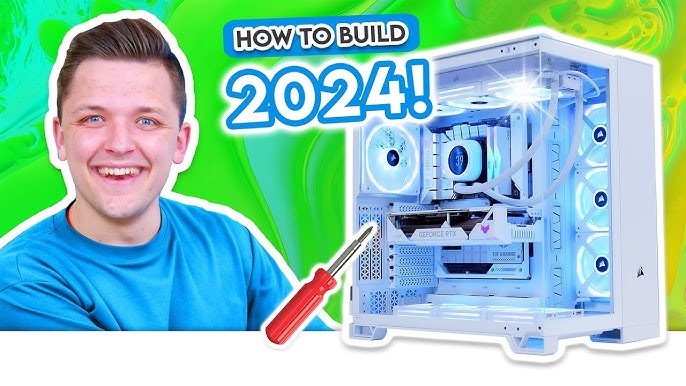
How to Build a Gaming PC for Beginners 2024: Your Ultimate Step-by-Step Guide
Are you ready to dive into the thrilling world of PC gaming but feel overwhelmed by the thought of assembling your own machine? Building a custom gaming PC in 2024 is more accessible than ever, offering unparalleled performance, upgradeability, and value compared to pre-built systems. This comprehensive guide will walk you through how to build a gaming PC for beginners 2024, demystifying the process from selecting compatible PC components to the crucial first boot. Get ready to embark on an incredibly rewarding journey that culminates in your very own high-performance gaming rig, tailored precisely to your needs and budget. Let's transform that daunting challenge into an exciting project, ensuring you understand every step of creating your dream gaming computer.
Phase 1: Planning Your Dream Gaming PC – The Foundation of Success
Before you even think about ordering parts, meticulous planning is paramount. This initial phase sets the stage for a smooth build and ensures you end up with a gaming PC that meets your expectations without breaking the bank. Understanding your goals and the basic PC components is the first critical step.
Setting a Realistic Budget
Your budget dictates the caliber of your gaming experience. For beginners in 2024, a solid entry-level gaming PC can start around $700-$1000, offering good performance for 1080p gaming. Mid-range builds ($1000-$1500) excel at 1440p, while high-end systems ($1500+) push into 4K territory. Be realistic about what you can afford, but also consider future upgradeability. Remember to allocate funds not just for the core hardware, but also for a monitor, keyboard, mouse, and the operating system. Many beginners overlook these essential peripherals, which can add significant cost.
Understanding Core PC Components
A gaming PC is a symphony of interconnected parts, each playing a vital role. Familiarizing yourself with these foundational elements is crucial for effective planning and troubleshooting. Here's a quick rundown:
- Central Processing Unit (CPU): The "brain" of your PC, responsible for executing instructions. For gaming, you'll want a modern multi-core processor from Intel or AMD.
- Graphics Processing Unit (GPU): The "heart" of your gaming rig, rendering all the visuals. This is often the most expensive component and the single biggest determinant of in-game performance.
- Random Access Memory (RAM): Temporary, high-speed storage for active applications and games. More RAM (typically 16GB for modern gaming) allows for smoother multitasking and better game performance.
- Storage (SSD/HDD): Where your operating system, games, and files are permanently stored. Solid State Drives (SSDs) are significantly faster than traditional Hard Disk Drives (HDDs) and are highly recommended for your OS and primary games.
- Motherboard: The "nervous system," connecting all components and allowing them to communicate. Compatibility with your chosen CPU and RAM is essential.
- Power Supply Unit (PSU): Provides power to all your components. You'll need one with sufficient wattage and the correct connectors for your chosen hardware.
- PC Case: The "body" that houses all your components. Consider size, airflow, and aesthetics.
- CPU Cooler: Keeps your CPU from overheating. Some CPUs come with stock coolers, but aftermarket options often offer better performance and acoustics.
Compatibility Checks and Research
One of the biggest hurdles for beginners is ensuring all components are compatible. Tools like PCPartPicker.com are invaluable resources that help you select parts and automatically flag potential compatibility issues (e.g., wrong CPU socket for motherboard, insufficient PSU wattage). Spend time researching reviews and benchmarks for specific components to understand their performance in real-world scenarios. Look for guides or videos showcasing similar custom build configurations to yours. This research phase is where you prevent headaches down the line.
Phase 2: Gathering Your Arsenal – Essential Components Explained in Detail
With your plan in place, it's time to select the specific hardware. This section dives deeper into each component, offering practical advice for making informed choices for your DIY gaming computer.
Processor (CPU) Selection
For gaming in 2024, both Intel's Core i5/i7 series and AMD's Ryzen 5/7 series offer excellent performance. For a budget-friendly build, a Ryzen 5 7600 or Intel Core i5-13600K are fantastic choices. For higher-end performance, consider a Ryzen 7 7800X3D or Intel Core i7-14700K. Always check the CPU's socket type (e.g., AM5 for modern AMD, LGA 1700 for modern Intel) and ensure your motherboard supports it. Performance benchmarks are your best friend here.
Graphics Card (GPU) – The Gaming Powerhouse
This is arguably the most critical component for gaming. NVIDIA's GeForce RTX series and AMD's Radeon RX series dominate the market. For 1080p gaming, look at an RTX 4060 or RX 7600. For 1440p, an RTX 4070 Super or RX 7800 XT provides excellent value. High-end 4K gaming demands an RTX 4080 Super, RTX 4090, or RX 7900 XTX. Research specific game performance for your target resolution and refresh rate. This is where most of your budget should go.
Memory (RAM) – Multitasking & Gaming Performance
For modern gaming, 16GB of DDR4 RAM is the minimum, with 32GB of DDR5 becoming increasingly common and recommended for future-proofing, especially for high-end builds. Look for a kit with a speed of at least 3200MHz for DDR4 or 6000MHz for DDR5, and lower CAS Latency (CL) numbers are better (e.g., CL16 for DDR4, CL30 for DDR5). Ensure your motherboard supports the RAM type (DDR4 or DDR5) and speed.
Storage Solutions – SSD vs. HDD
An NVMe M.2 SSD is essential for your operating system and frequently played games due to its incredible speed. A 1TB NVMe SSD is a good starting point. For larger game libraries or general file storage, you can add a secondary SATA SSD or a traditional Hard Disk Drive (HDD). The speed difference between an NVMe SSD and an HDD is night and day; you will notice it every time you boot your PC or load a game.
Motherboard – The PC's Central Nervous System
The motherboard dictates what CPU, RAM, and storage types you can use. Ensure it has the correct CPU socket, supports your chosen RAM type and speed, and has enough M.2 slots for your SSDs. Key features to look for include USB port count, Wi-Fi capability (if needed), and PCIe slots for your GPU. Chipsets (e.g., B650, Z790) denote features and overclocking capabilities. For beginners, a mid-range B-series chipset often provides excellent value.
Power Supply Unit (PSU) – Fueling Your Rig
Don't skimp on the PSU. A reliable PSU protects your components. Use an online PSU calculator (like those on PCPartPicker or component manufacturer sites) to estimate your system's total wattage requirement, then add a 100-200W buffer. Look for PSUs with an 80 PLUS Bronze, Gold, or Platinum rating, indicating efficiency. Modular PSUs are easier for cable management as you only connect the cables you need.
PC Case – Form, Function, and Airflow
Your case selection is largely personal preference, but consider size (ATX, Micro-ATX, Mini-ITX), airflow, and compatibility with your GPU length and CPU cooler height. Good airflow is crucial for keeping your components cool and extending their lifespan. Many cases come with pre-installed fans, which is a bonus for a beginner's gaming PC assembly.
Cooling Solutions – Keeping Temps Down
Your CPU will generate heat. Most CPUs come with a basic stock cooler, which is usually sufficient for non-overclocked, budget builds. However, for better performance, lower noise, or if your CPU doesn't include a cooler, consider an aftermarket air cooler (e.g., Thermalright Peerless Assassin) or an All-in-One (AIO) liquid cooler. Liquid coolers offer superior cooling but are generally more expensive and complex to install.
Peripherals and Operating System
Don't forget a monitor (matching your GPU's capabilities, e.g., 144Hz for competitive gaming), a gaming keyboard, mouse, and a copy of Windows 10 or 11. These are essential for the complete gaming experience.
Phase 3: The Assembly Process – Your Step-by-Step Guide to Building
This is where the magic happens! Follow these steps carefully. Take your time, read your component manuals, and don't force anything. Static electricity is a concern, so work on a hard, non-carpeted surface and touch a grounded metal object (like your PC case) frequently or use an anti-static wrist strap.
Preparation and Workspace
- Gather Tools: You'll need a Phillips head screwdriver (magnetic tip is a bonus), zip ties or Velcro straps for cable management, and possibly a pair of small snips.
- Clear Workspace: Ensure a clean, well-lit, and spacious area. Keep all your component boxes organized for easy access to manuals and accessories.
- Unbox Motherboard: Place the motherboard on its anti-static bag or the foam pad from its box. This is your starting point.
Installing the CPU
This is a delicate step. Lift the CPU retention arm on the motherboard socket. Align the gold triangle (or notch) on the CPU with the corresponding mark on the motherboard socket. Gently lower the CPU straight down. Do NOT force it. If it doesn't drop in easily, realign it. Once seated, close the retention arm to secure it. If your CPU requires thermal paste (some coolers come pre-applied), apply a pea-sized dot to the center of the CPU's integrated heat spreader.
Mounting the CPU Cooler
Follow your cooler's specific instructions. This usually involves attaching a backplate to the motherboard (from the underside), securing standoffs, and then mounting the cooler itself. Ensure even pressure when tightening screws. For air coolers, check RAM clearance.
Installing RAM
Locate the RAM slots on your motherboard (usually two or four). Open the clips on both ends of the slot. Align the notch on the RAM stick with the notch in the slot. Press down firmly and evenly on both ends until the clips snap into place. If you have two sticks, consult your motherboard manual for the correct slots for dual-channel performance (often slots 2 and 4).
Mounting the Motherboard in the Case
- Install Standoffs: Screw in the brass standoffs into your PC case according to your motherboard's form factor (ATX, Micro-ATX).
- Install I/O Shield: If your motherboard didn't come with an integrated I/O shield, snap it into the back of your case from the inside.
- Carefully Place Motherboard: Lower the motherboard onto the standoffs, aligning the screw holes.
- Secure Motherboard: Screw the motherboard into place using the provided screws. Don't overtighten.
Installing Storage Drives
For NVMe SSDs, locate the M.2 slot(s) on your motherboard. Remove the small screw or plastic clip, insert the SSD at an angle, then push it down and secure it with the screw/clip. For 2.5-inch SSDs or 3.5-inch HDDs, mount them in the drive bays of your case using screws or tool-less mechanisms. Connect a SATA data cable from the drive to your motherboard and a SATA power cable from the PSU.
Installing the Power Supply
Slide the PSU into its designated bay (usually at the bottom rear of the case). Ensure the fan faces the correct direction (usually downwards if there's a vent, or upwards if not). Secure it with screws from the back of the case. Begin connecting the essential power cables: the 24-pin ATX power to the motherboard, the 8-pin (or 4+4-pin) EPS/CPU power to the motherboard, and PCIe power cables for your GPU.
Connecting Front Panel Headers
This is often the trickiest part for beginners due to the tiny wires. These connect your case's power button, reset button, USB ports, and audio jacks to the motherboard. Refer to your motherboard manual for the exact pin layout. Take your time and connect them correctly.
Installing the Graphics Card (GPU)
Locate the primary PCIe x16 slot on your motherboard (usually the top-most, reinforced slot). Remove the corresponding PCIe slot cover(s) from the back of your case. Open the retention clip on the PCIe slot. Align your GPU with the slot and press down firmly until it clicks into place. Secure it to the case with screws. Connect the appropriate PCIe power cables from your PSU to the GPU (some require 6-pin, 8-pin, or 12VHPWR connectors).
Cable Management
This improves airflow and aesthetics. Route cables through the back of the motherboard tray where possible. Use zip ties or Velcro straps to bundle cables neatly. Don't block airflow to fans or components. Good cable management makes future upgrades and troubleshooting much easier.
Phase 4: First Boot, OS Installation & Driver Setup
You're almost there! This final phase brings your gaming PC to life.
Initial Power-Up and BIOS
- Double-Check Connections: Ensure all power cables (especially CPU, GPU, and motherboard) are firmly seated.
- Connect Peripherals: Plug in your monitor (to the GPU, not the motherboard's video output unless you're using integrated graphics), keyboard, and mouse.
- Power On: Flip the switch on your PSU, then press the power button on your case.
- Enter BIOS/UEFI: Immediately after pressing power, repeatedly press the designated key (usually DEL, F2, or F10 – check your motherboard manual) to enter the BIOS/UEFI settings.
- Basic BIOS Configuration:
- Enable XMP/DOCP/EXPO: This ensures your RAM runs at its advertised speed.
- Check Boot Order: Ensure your USB drive (with OS installer) or primary SSD is set as the first boot device.
- Save and Exit: Save your changes and restart.
Installing the Operating System
You'll need a Windows 10 or 11 installation USB drive (created using Microsoft's Media Creation Tool on another PC). Boot from this USB drive, follow the on-screen prompts, select your primary SSD for installation, and proceed. This process typically takes 15-30 minutes.
Installing Drivers and Updates
Once Windows is installed, the real optimization begins.
- Chipset Drivers: Download and install the latest chipset drivers from your motherboard manufacturer's website.
- GPU Drivers: Download the latest drivers directly from NVIDIA (GeForce Experience) or AMD (Adrenalin Software). This is crucial for gaming performance.
- Other Drivers: Install any other necessary drivers for Wi-Fi, LAN, audio, etc., from your motherboard's support page.
- Windows Updates: Run Windows Update repeatedly until no more updates are available.
Performance Testing
Once all drivers are installed, run a few benchmarks (e.g., Cinebench for CPU, Heaven or 3DMark for GPU) and play some of your favorite games. Monitor temperatures (using software like HWMonitor or MSI Afterburner) to ensure everything is running cool and stable. This helps identify any troubleshooting tips you might need.
Advanced Tips for Optimizing Your Gaming PC
Now that your gaming PC is up and running, here are some ways to fine-tune it for peak performance and longevity.
Overclocking Basics (Optional)
Overclocking involves increasing your CPU or GPU's clock speed beyond its factory settings for more performance. This is an advanced topic and should only be attempted if you have adequate cooling and understand the risks. For beginners, focus on stable performance first. If you decide to explore, start with gentle increments and monitor temperatures meticulously. Many guides are available online for specific CPU and GPU models.
Monitoring Performance and Temperatures
Regularly monitoring your system's health is key. Tools like HWMonitor, MSI Afterburner, and even Windows Task Manager can provide real-time data on CPU usage, GPU usage, temperatures, and fan speeds. High temperatures can lead to thermal throttling, reducing performance and potentially shortening component lifespan. Understanding your performance benchmarks helps you identify bottlenecks.
Regular Maintenance
A well-maintained PC performs better and lasts longer.
- Dust Cleaning: Every few months, use compressed air to blow dust out of your case fans, CPU cooler, and GPU heatsink.
- Driver Updates: Keep your GPU and chipset drivers updated for optimal performance and stability.
- Software Cleanup: Regularly uninstall unused programs and clean up temporary files.
- Thermal Paste Replacement: After several years, consider reapplying thermal paste to your CPU for optimal cooling.
Frequently Asked Questions
Is building a gaming PC difficult for beginners in 2024?
While it might seem daunting, building a gaming PC in 2024 is surprisingly straightforward for beginners. Modern components are designed for easier installation, and there's a wealth of online resources, including video tutorials and guides like this one. The key is to take your time, follow instructions carefully, and double-check connections. It's more like assembling high-tech LEGOs than complex engineering. The most challenging parts are often the tiny front panel connectors and proper cable management, but patience prevails.
How much does it cost to build a decent gaming PC in 2024?
The cost to build a decent gaming PC in 2024 can vary widely based on your desired performance and resolution. A solid entry-level 1080p gaming PC typically starts around $700-$1000. For a mid-range system capable of excellent 1440p gaming, expect to spend $1000-$1500. High-end builds for 4K gaming or competitive esports can range from $1500 upwards to $2500+ or more. Remember to factor in the cost of an operating system, monitor, and other peripherals.
What are the most common mistakes beginners make when building a PC?
Common mistakes include forgetting to install the I/O shield, not fully seating RAM sticks or the GPU, applying too much or too little thermal paste, neglecting to plug in essential power cables (especially the CPU 8-pin), and improper cable management leading to poor airflow. Another frequent issue is not updating drivers after the OS installation, which severely impacts performance benchmarks. Always refer to your component manuals, and don't hesitate to re-check connections if something isn't working.
Can I use my old hard drives or power supply in a new build?
You can potentially reuse old hard drives (HDDs) or SATA SSDs for additional storage, but it's highly recommended to use a new NVMe SSD as your primary boot drive for speed. Regarding the power supply (PSU), it's generally advisable to get a new one, especially if your old PSU is more than 5-7 years old, has a low 80 PLUS efficiency rating, or doesn't have sufficient wattage/correct connectors for your new, more powerful components. A failing PSU can damage other parts, so it's not worth the risk. Always verify the wattage and connectors needed for your new gaming hardware.

0 Komentar